
 Doc Summary

What are Pipeline Permissions? #
Pipeline Permissions define visibility and editing rights for individual pipelines inside Opportunities. Admins can grant access to everyone, target specific roles/users, or explicitly exclude users—without changing broader sub-account roles. This granular visibility keeps data secure and lets sales teams focus only on the deals that matter to them.
Key Benefits of Pipeline Permissions #
- Consistency: preserve stage names/order while allowing reps to work deals.
- Data privacy: hide revenue/board data from contractors or new staff.
- Granular control: share with all, specific users, or exclude exceptions.
- Auditability: track who changed pipeline settings for compliance needs.
- Cross-platform: the same permissions apply on web and the HighLevel mobile app.
- Dashboards parity: widgets and metrics honor pipeline access and Assigned Data.
How To Manage Pipeline Permissions #
Follow these steps to configure who sees and edits each pipeline while protecting stage structure and sensitive revenue data.
-
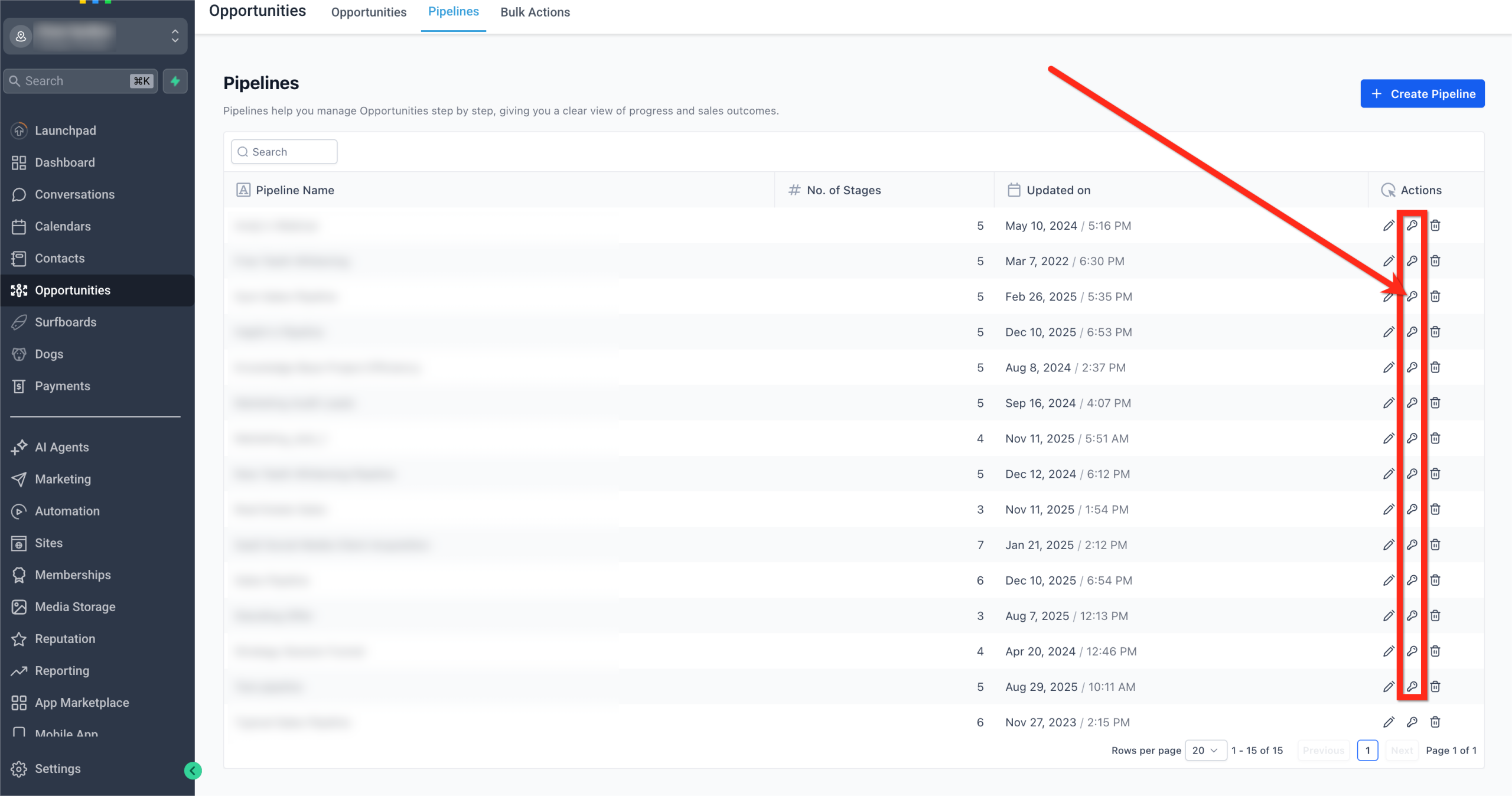
Go to Opportunities → Pipelines.

-
Click the Key icon next to the pipeline name to open Manage permissions.
-
Choose a Sharing mode: Share with all users, Share with selected users/roles, or Exclude specific users.
-
For each included user/role, set an Access level: View Only, Edit, or No Access.

-
Click Copy link to share direct access with teammates who already have permission. (Optional)
-
Click Save to apply.
Sharing Modes for Pipeline Permissions #
Three flexible ways to share each pipeline let you mirror any org structure.
- Share with All Users: grant everyone View Only, Edit or No Access in one click.
- Share with Selected Users: pick individual users/roles and set View Only, Edit, or No Access for each.
- Exclude specific users: keep the pipeline global, then remove access for a few exceptions.
Access Levels for Pipeline Permissions #
Clear labels make it obvious what each person can do.
Note: Admin user will always have full access to the pipeline.
- View Only: move and update opportunities, but cannot add/edit/delete stages or pipelines.
- Edit: full control to add, edit, and delete pipeline stages (including the pipeline itself).
- No Access: the pipeline is completely hidden in web, mobile, and API responses.
Audit Logs & Safeguards for Pipeline Permissions #
HighLevel automatically logs every create, update, or revoke action with user, pipeline, action, and timestamp for 60 days. This audit trail simplifies troubleshooting and compliance reviews.
- Navigate to Settings → Audit Logs.
- Filter by User, Module – Pipeline Permissions, Actions, Date Range to view who changed what, and when.
- The system also prevents you from revoking access from anyone who currently owns opportunities in that pipeline. You’ll be prompted to reassign ownership first.

Frequently Asked Questions #
Q: What’s the difference between “View Only” and “No Access”?
View-only users can still move or update their assigned opportunities inside the pipeline. No Access hides the pipeline completely.
Q: What if a user already owns opportunities and I set them to No Access?
High-level blocks that change. Reassign or delete their opportunities first, then remove access.
Q: Do permissions sync to the mobile app?
Yes. The same rules apply across web, iOS, Android, and all API responses.
Q: Can I bulk-assign permissions to a role instead of each user?
Yes—roles appear in the selector. Everyone in that role inherits the chosen level.
Q: Will permission changes break active automations or webhooks?
No. Automations continue to run. However, API calls made with a user token that lacks access will return an empty pipeline list.
Q: Is there an “Owner Only” option?
Use “Share with selected users” > choose the owner > set others to No Access for a true owner-only pipeline.
Q: How long are Audit Logs retained?
60 days of history are available for download or review.


