
 Doc Summary

The If/Else workflow action allows you to route contacts through different paths based on defined conditions. With the latest enhancement, you can now use Dynamic Custom Values in If/Else conditions to compare live values from earlier workflow steps or stored fields—eliminating the need to hard-type values and reducing duplicate logic.
What Is the If/Else Workflow Action? #
The If/Else action evaluates contact-specific data and splits a workflow into multiple branches based on whether conditions are met. Each branch represents a logical path that a contact follows depending on the outcome of the condition check.
This makes it possible to create personalized, data-driven workflows that adapt dynamically to a contact’s behavior, attributes, or calculated values.
Key Benefits of the If/Else Action #
-
Conditional Logic: Route contacts down different paths based on real-time data
-
Automation Efficiency: Reduce manual sorting and duplicate workflow steps
-
Scalable Segmentation: Handle complex branching logic as workflows grow
-
Visual Clarity: Clearly see and manage decision points in the workflow builder
How to Use the If/Else Action #
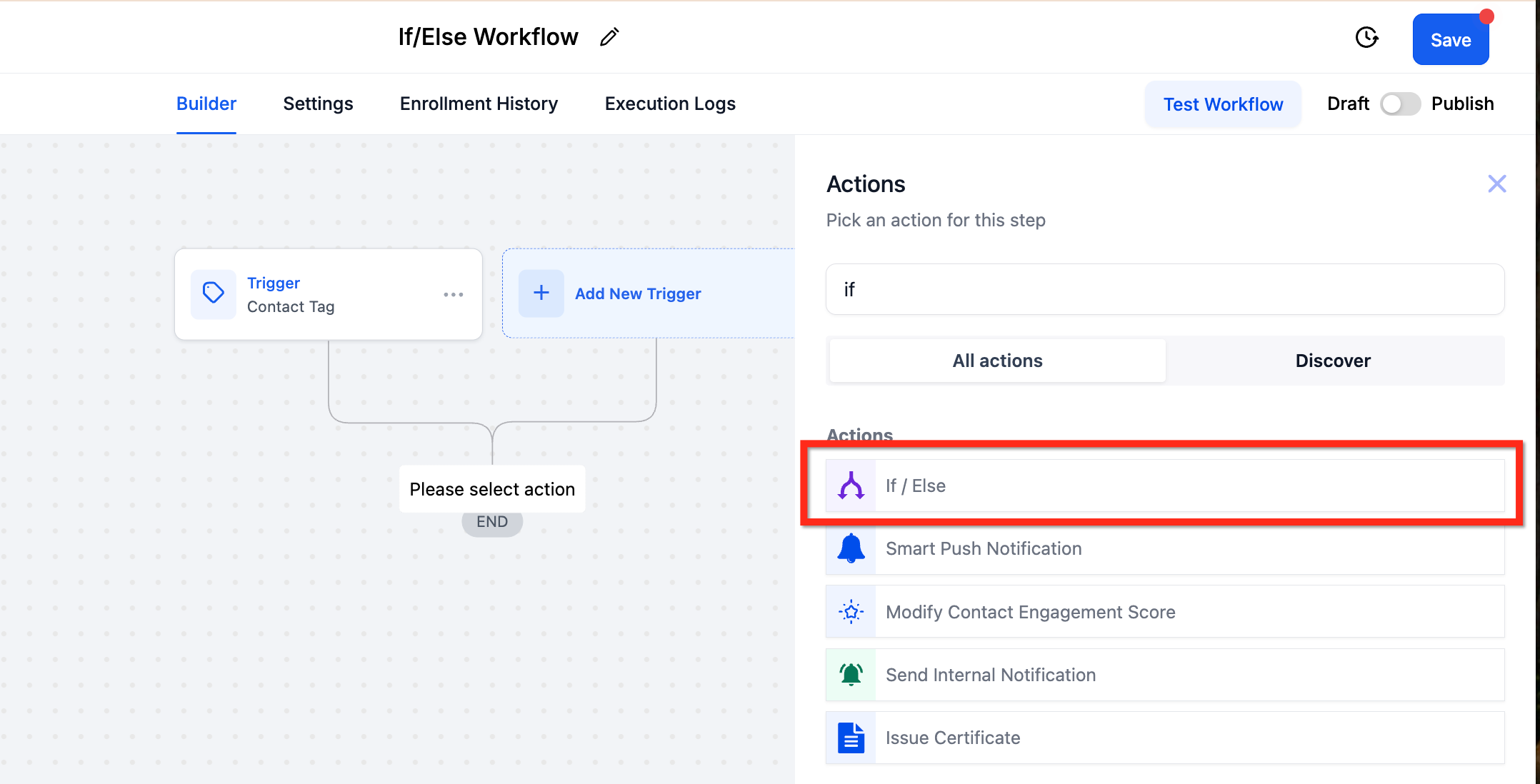
Step 1: Add the If/Else Action #
-
Open your workflow.
-
Click the + icon to add a new action.
-
Select If / Else from the action list.
Step 2: Choose a Logic Setup Method #
You can either:
-
Build logic manually using Build My Own, or
-
Start from a prebuilt recipe with common conditions.
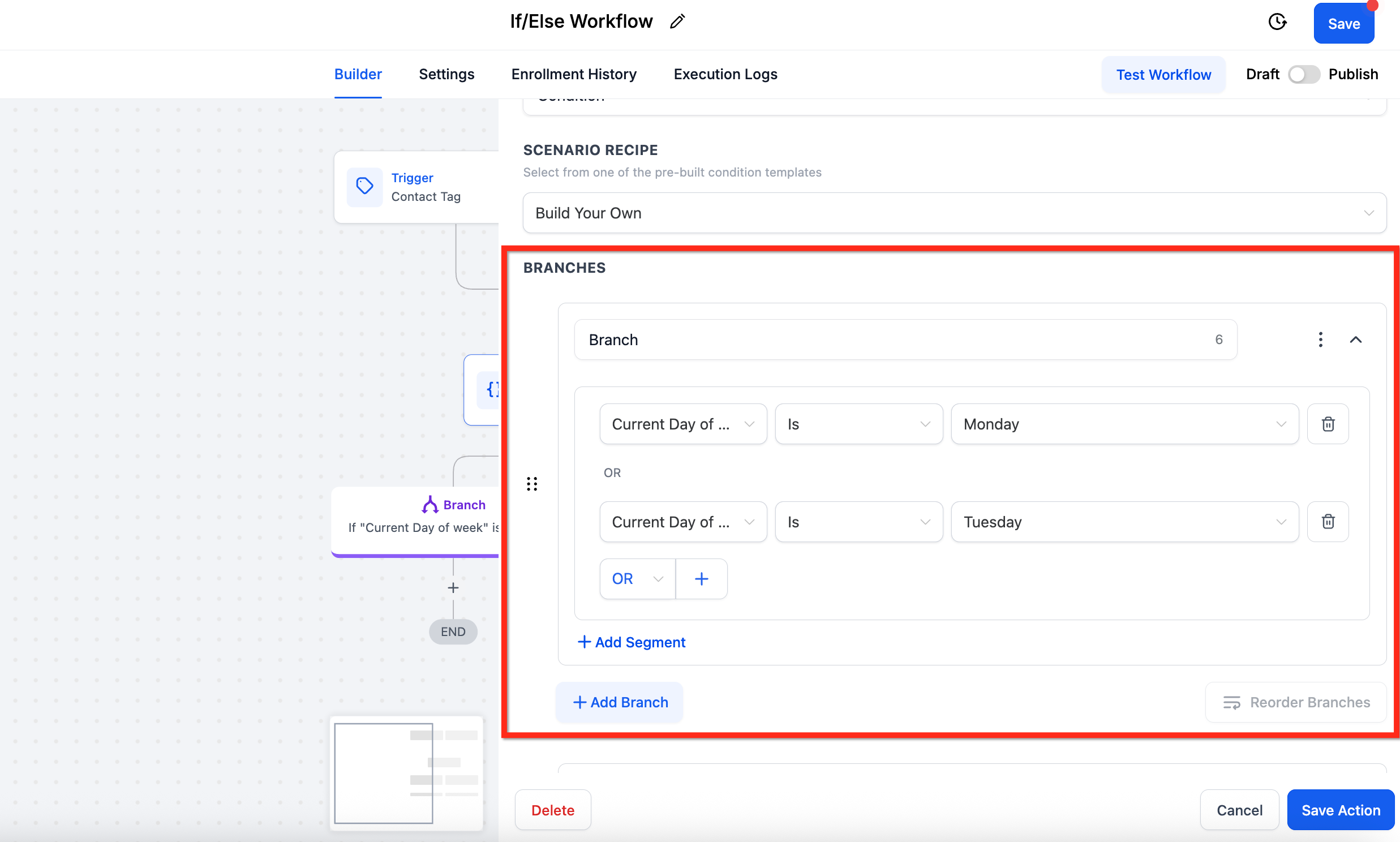
Step 3: Configure the First Branch #
-
Select the field you want to evaluate.
-
Choose the appropriate operator.
-
Set the comparison value.
-
Click Add Segment to add additional conditions.
-
Use AND / OR to control how conditions are grouped.
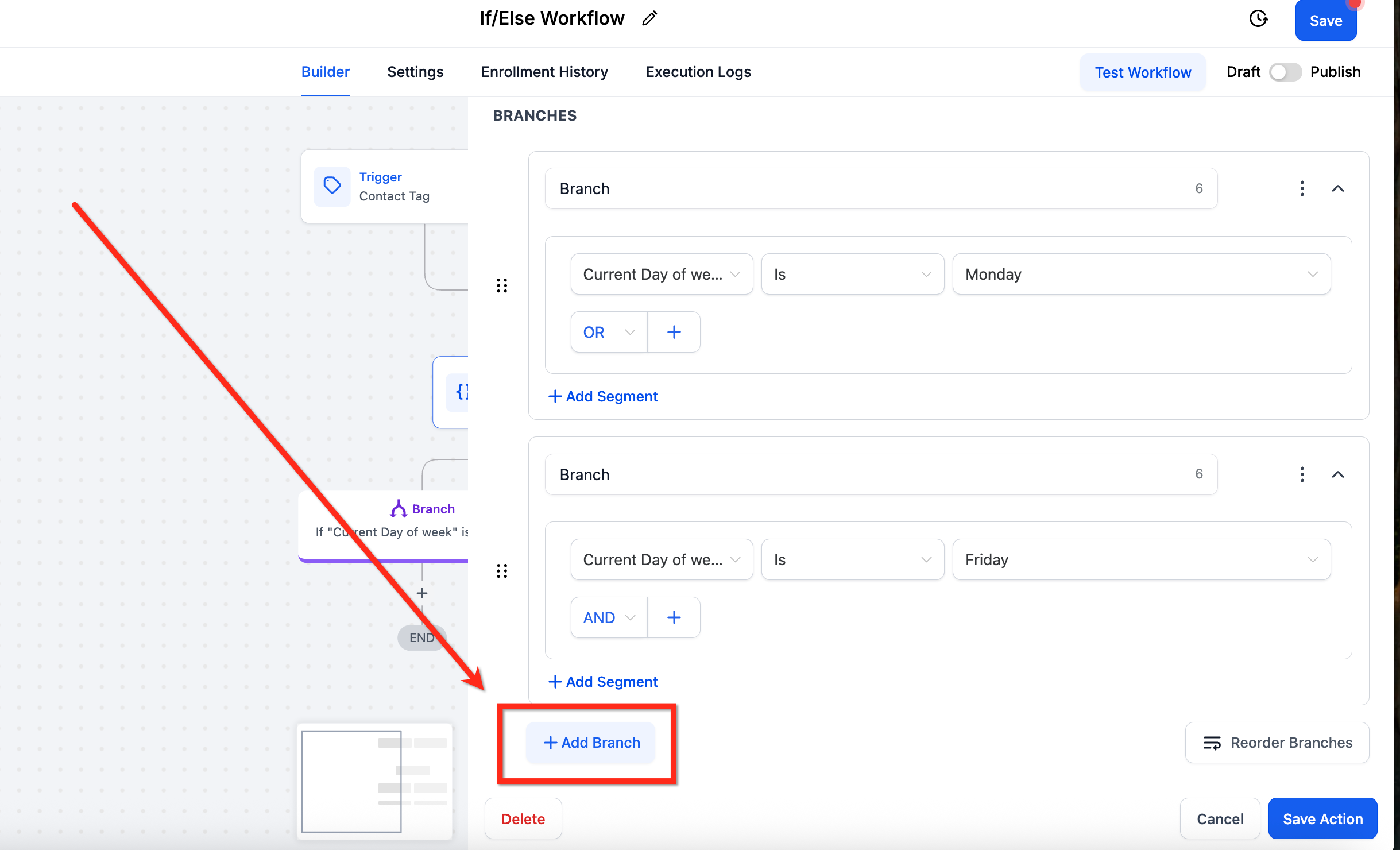
Step 4: Add Additional Branches (Optional) #
-
Click Add Branch to define more condition groups.
-
Each branch represents a separate path in the workflow.
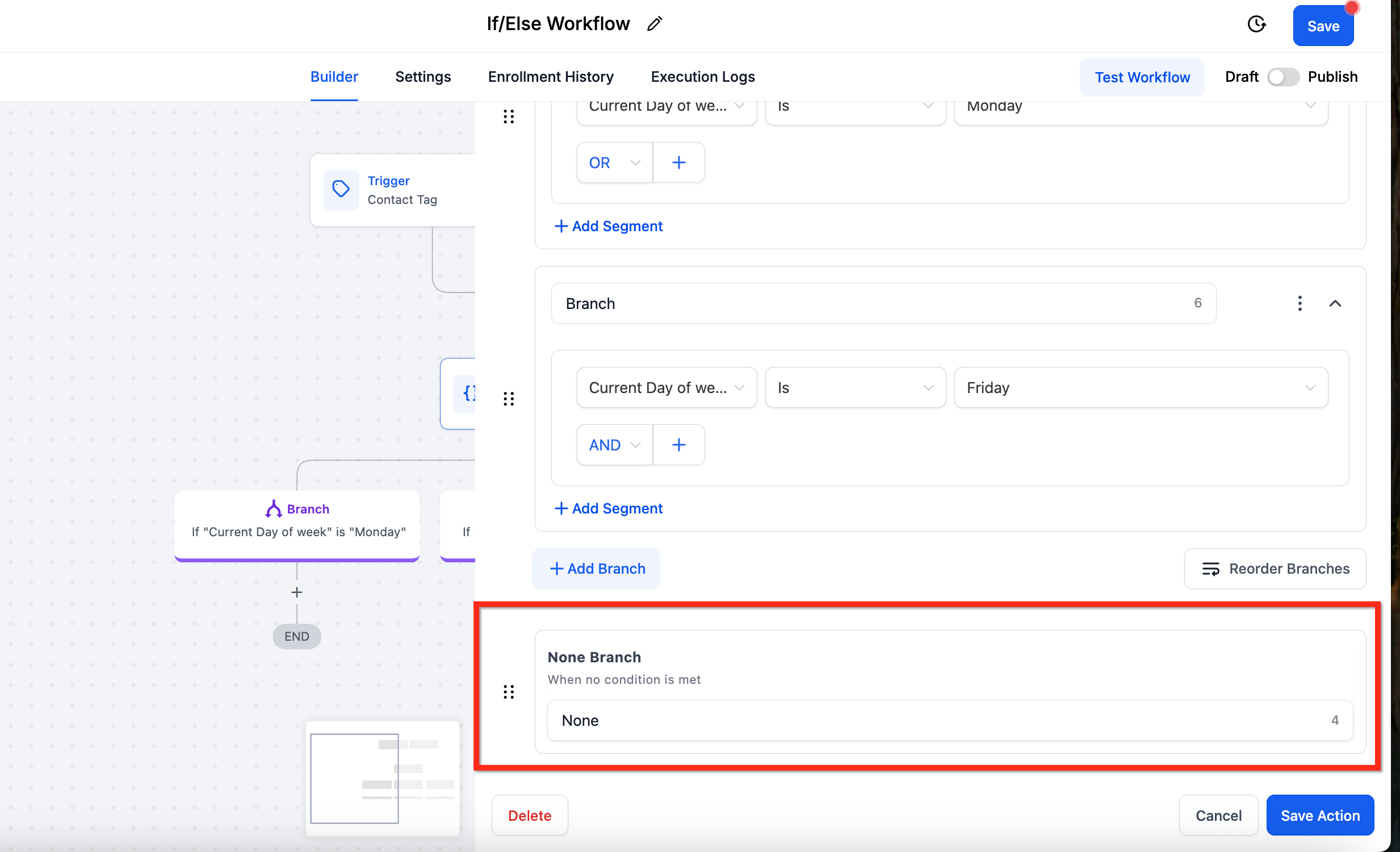
Step 5: Configure the “None” (Else) Branch #
-
The None branch is created automatically.
-
It runs when no defined conditions are met.
-
This branch does not support conditions and cannot be removed.
-
You can rename it and add fallback actions.
Using Dynamic Values in If/Else Conditions #
You can now use Dynamic Values on the right-hand side of If/Else conditions. This allows you to compare live values—such as outputs from earlier workflow steps or stored fields—without hard-coding numbers or text.
This enhancement lets you branch directly on values that were calculated or captured upstream.
Supported Field Types #
Dynamic Values are supported for the following condition types in If/Else actions:
-
Numeric – scores, counts, totals
-
Date – appointment dates, renewal dates
-
Select / Dropdown (advanced – requires option IDs)
-
Monetary – invoice totals or amounts
How to Use Dynamic Values #
-
Add an If/Else action to your workflow.
-
Configure the left-hand field as usual.
-
In the right-hand input, switch the value type to Dynamic Value.
-
Select a value from:
-
An earlier workflow step output, or
-
A stored field.
-
-
Choose the appropriate operator (number, date, or value).
-
Save and publish the workflow.
Important Note for Select / Dropdown Fields #
Select / Dropdown fields require option IDs, not display names, when used with Dynamic Values in If/Else conditions.
In many cases, these IDs can be found in settings (for example, Pipeline IDs or Stage IDs).
Example Use Case #
When a proposal value is captured earlier in the workflow, you can compare that value dynamically.
If the amount is $25,000 or more, route the contact to a priority path; otherwise, continue with the standard process.
Action Details #
|
Field |
Description |
Required |
|---|---|---|
|
Action Name |
Label used to identify the action in the workflow |
Yes |
|
Condition |
The rule evaluated to determine the branch |
Yes |
|
Branches |
Workflow paths created by the If/Else action |
Yes |
|
Segments |
Groups of conditions combined using AND / OR logic |
No |
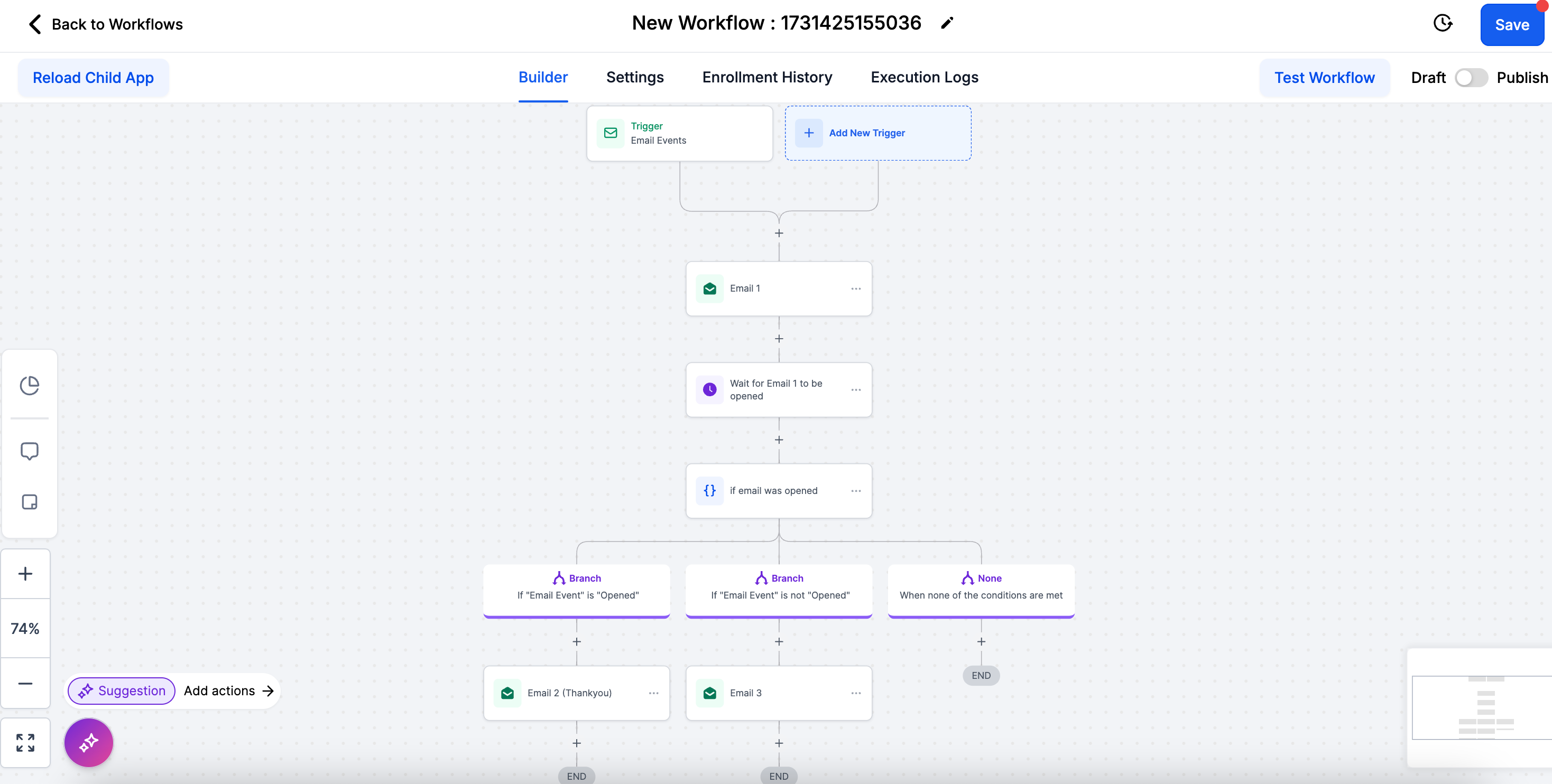
Example: Follow-Up Based on Email Engagement #
Scenario:
You want to follow up differently based on whether a contact opened an email.
Workflow Logic:
-
Trigger: Promotional email sent
-
If/Else Condition: Email Event → Is Opened
-
Yes Branch: Send thank-you email with an offer
-
No Branch: Resend the email with a different subject line
This ensures follow-ups are relevant to each contact’s engagement.
Frequently Asked Questions #
Q: How can I control when the If/Else condition is evaluated?
Insert a Wait action before the If/Else step. You can wait for an event or a timeout (for example, “Wait until email is opened OR 1 day passes”) before evaluating the condition.
Q: Can I edit a branch after it’s created?
Yes. You can update fields, operators, and values before or after publishing the workflow.
Q: Is the None branch required?
Yes. It is created automatically and cannot be removed.


